
音序Muse · 0.4.0
Click a scene and get background music. You do not need to know music: click a scene (a café, travel scenery, a game level…) and an instrumental background track is ready in a few seconds; click “Download music” to get the WAV. If something is off, one click on “Happier” or “Slower” changes it, and a plain sentence tells you what changed. Local composing is fully offline and needs no account; switch to Pro mode when you want full control. The Windows version can also connect cloud AI music services and an LLM producer with your own keys.
The web version needs a recent browser and has so far been tried only in Chromium-based browsers. The Windows version is a 64-bit program tried only on Windows 11 (not on Windows 10). Cloud music services and the LLM producer need your own provider keys.
Before you start
- Click a scene: a café, travel scenery, a game level… One click starts it, with nothing else to choose. You can also describe the picture you have in mind in one sentence and click “Make one”
- It starts playing as soon as it is ready
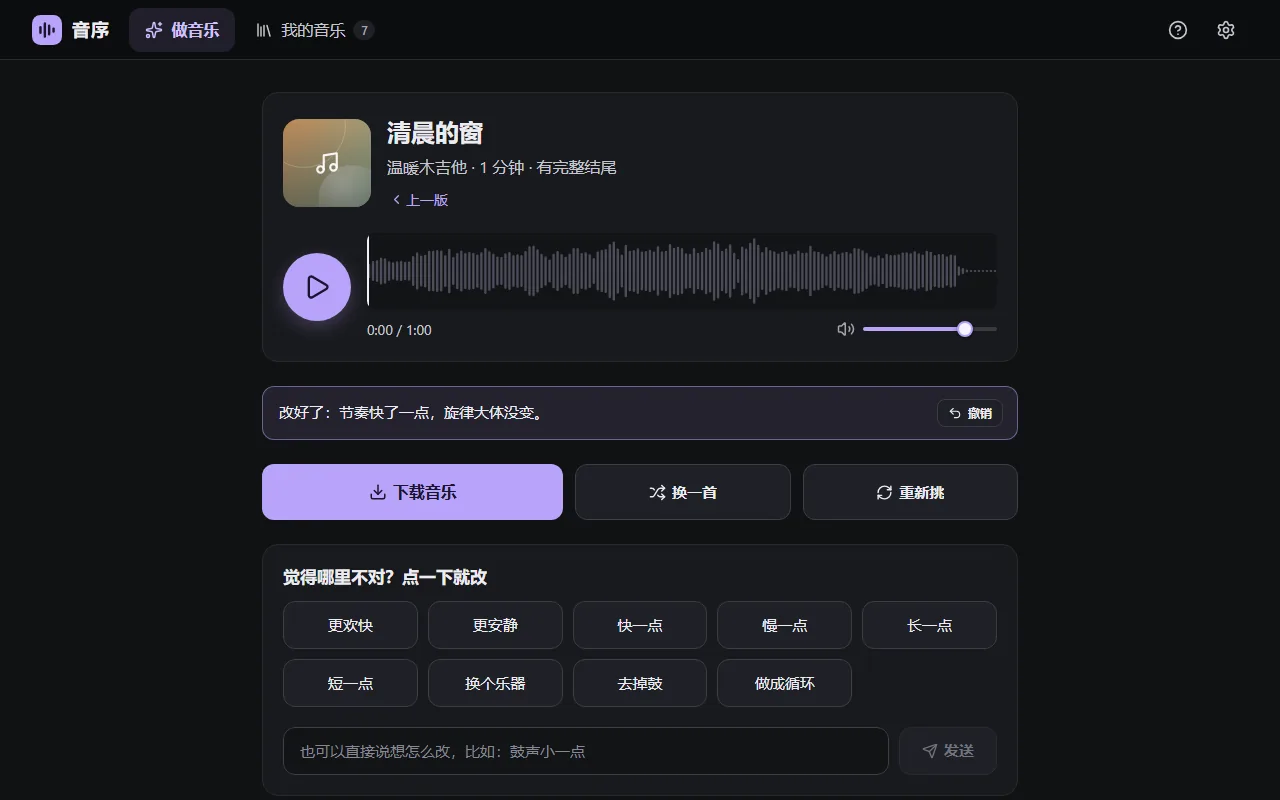
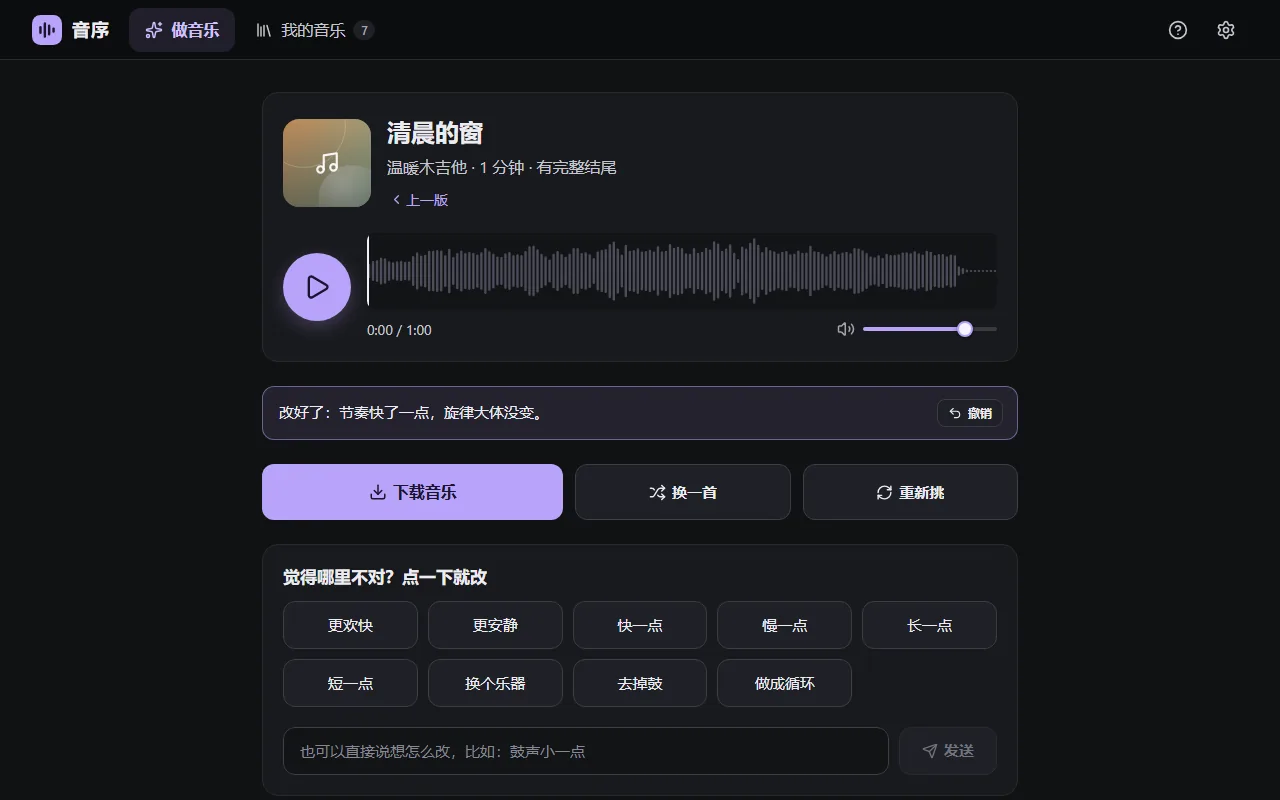
- If something feels off, one click changes it: “Happier”, “Slower”, “Change instrument”, “No drums”… A plain sentence tells you what changed, and “Undo” takes you back to the previous version
- When you are happy with it, click “Download music” to save a WAV
Web version and Windows version
Both open in Simple mode; “Pro mode” in the corner of the page switches to the full workbench in one click (changes by chat, four separate tracks, sections and chords). The web version only composes locally: it runs entirely in your browser, sends no network requests and needs no account. Cloud AI music services and the LLM producer are in the Windows version only. Each version keeps its own library; the two are not shared.
Where your pieces are saved
Only in this browser (in this site's IndexedDB); nothing is uploaded. Clearing this site's data deletes your pieces with it, and they do not appear in another browser or on another device. To keep them or take them with you, click “Download music” to save a WAV; in Pro mode you can also export a project file and import it later.
Click a scene
Daily vlog, café, travel scenery, game level… 12 scenes, and one click starts. You can also describe the picture you have in mind in one sentence.
Compose
Local composing is offline from start to finish, and the same settings always give the same music. The Windows version can use a cloud AI music service instead.
Listen, then change it in one click
It plays as soon as it is ready. Happier, slower, another instrument, no drums: one click changes it, and a plain sentence tells you what changed. Earlier versions are all kept.
Download
“Download music” saves the whole piece as a 48 kHz WAV named after its title. In Pro mode you can also export a single track, a loop repeated 2 or 4 times, or a project file.
What it does
Click, listen, and click again to change it
The default Simple mode needs no music knowledge at all, and there is not one technical term on screen. When you want control, “Pro mode” is one click away. Both modes use the same pieces and the same local composing engine: the producer turns your choices into a style, tempo, key and instrumentation, the composer writes a piece with sections, and the synthesizer plays it, all on your own device.
Click a scene to start
12 scenes: daily vlog, café, travel scenery, cute pets, study focus, bedtime, workout, game level, epic film, Chinese traditional, romantic and tech product, with 10 more under “More styles”. One click starts it, with nothing else to choose. Leave the length to the scene, or pick 30 seconds, 1 minute or 2 minutes. You can also describe the picture you have in mind in one sentence and click “Make one”.
One click to change, in plain words
Happier, quieter, faster, slower, longer, shorter, another instrument, no drums (or add drums), make it loop (or add an ending): one click changes it, or just say “make the drums quieter”. Afterwards one sentence tells you what changed, such as “Done: the tempo is a little faster, the melody is unchanged.”, and “Undo” goes back to the previous version. When a change is not possible (for example the piece is already the maximum 2 minutes), it tells you why right away and does not make a pointless new version.
Pro mode, one click away
“Pro mode” in the corner of the page (or “Settings → General”) switches to the full workbench: set the style, length and structure yourself, and keep changing the piece by talking to the producer (“switch to guzheng”, “at most 100 bpm”); each reply lists what was actually changed. Sections are marked above the waveform and chords below it, and four faders (melody, harmony, bass and drums) mix in real time. Both modes use the same pieces, so switching loses nothing.
22 styles, 14 instruments, 24 keys
Styles run from youthful and cheerful to epic, lead instruments from piano and guzheng to an 8-bit square wave, with 12 major and 12 minor keys. Not sure what to pick? Just click a scene. In Pro mode you can also leave the style on “Auto” and let the producer decide from your description.
A loop, or a full ending
A seamless loop for games and shops, or a complete piece with a real ending for videos: the scene decides, and in Pro mode you choose yourself, from 15 to 120 seconds. A loop is aligned to whole bars: the tempo is adjusted by 3% at most; when more would be needed, the tempo stays and the length is rounded to the nearest whole bar, which is why Simple mode says “about 1 minute”. The interface shows the actual values.
Download a 48 kHz WAV
16-bit stereo, with loudness set to −16 LUFS. “Download music” saves the whole piece, named after its title. In Pro mode you can also export the full mix (a loop can be repeated 2 or 4 times), any single track, or a project file that can be imported again.
Every change is a new version
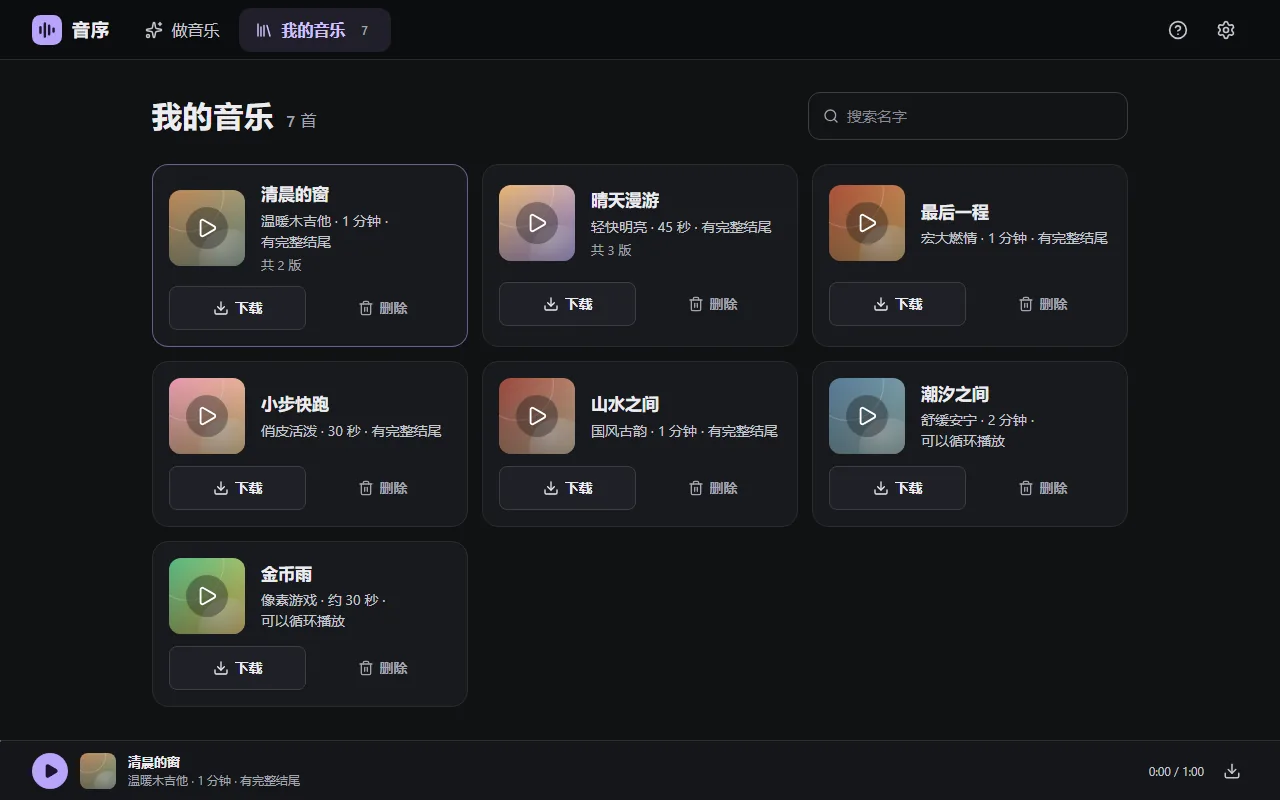
Each change makes a new version, and the old ones are all kept. In Simple mode, “My music” shows one card per piece (a piece changed a few times says “3 versions”), and “Previous / Next” lets you listen back and forth. In Pro mode, “My works” shows one card per version, and the versions of a piece share one conversation.
Local composing, no connection
Music-theory rules plus synthesis in code: no account, no key and no charge. It is not a generative music model running on your machine: there are no vocals, and the sounds are synthesized.
Paid requests ask you first
Once the Windows version is connected to a cloud AI music service, every generation is a paid request: the app asks before sending and never retries by itself. In Simple mode the “Generate with AI service” switch appears on the scene page only after a service is set up, and it is off by default. A result that was paid for but not fetched is never dropped silently: it stays on a banner that cannot be closed, “Download again” fetches it once more at no extra charge, and the app asks before giving it up (it is kept only until the app quits). A cloud result is a single mixed track, with no separate tracks.
22 styles
14 lead instruments
Screenshots
What it looks like
The screenshots are from the Windows version of 0.4.0 in the default Simple mode, in a 1280×800 window. The web version looks the same, only without cloud services and LLMs; on a narrow screen the content is laid out in one column.
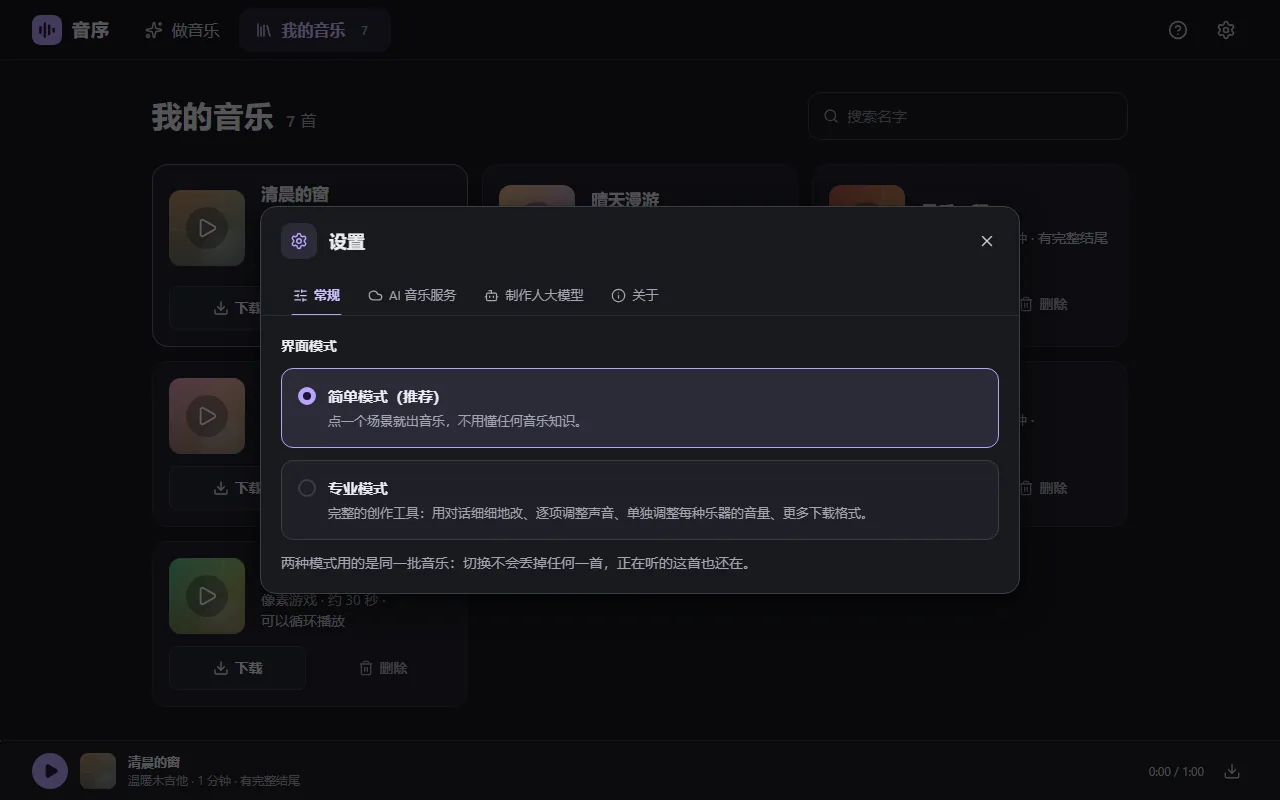
Windows version
First use
- Pick either the installer or the portable version. It opens in Simple mode: click a scene and local composing makes the music, with no account or key.
- To use a cloud AI music service, choose a provider under “Settings → AI music services” and save your own key. The scene page in Simple mode then gains a “Generate with AI service (service name, pay per use)” switch, off by default; in Pro mode, choose the service under “Engine”. Every generation is a paid request, and the app asks before sending.
- To have an LLM act as the producer, connect Claude (Anthropic), an OpenAI-compatible service (DeepSeek, Qwen, Doubao, Zhipu, Kimi, Tencent Hunyuan, OpenAI, or a custom endpoint) or a local Ollama under “Settings → Producer LLM”. Simple mode uses it to understand what you write yourself; scene cards and one-click adjustments always use the built-in offline rules. In Pro mode, choose it under “Producer”. If the LLM fails, the app falls back to the offline rules and says why. The “what changed” part of a reply is still written by the app from the changes that actually happened; the LLM's own words are only attached below as a “model note”, and anything that does not match the actual changes is not shown.
- Connecting nothing is fine too. The offline-rule producer and local composing are always available.
Cloud music services
Set up your own keys
| Service | Where to get a key |
|---|---|
| Tencent Cloud TokenHub | Tencent Cloud, using MiniMax Music |
| Volcano Engine AI Music | Volcano Engine |
| Alibaba Cloud Model Studio Fun-Music | Alibaba Cloud Model Studio, after applying for invited access |
| ElevenLabs Music | elevenlabs.io |
Keys are write-only and never shown again; Windows encrypts them and keeps them on your computer. Cloud generation and LLMs use the credit in your own provider accounts. The cloud regenerates the whole piece each time and does not keep the earlier melody. All of this belongs to the Windows version; the web version does not include it.
Testing
What has been tested and what has not
This is the test record of 0.4.0 as of 2026-11-02. “Tested” says which parts were real runs and which ran against simulated services.
- Automated tests: all 1077 unit tests pass, with none skipped (825 for composing, synthesis, the producer, the interface and Simple mode logic; 252 for credentials, cloud protocols and security in the Windows version's background process).
- Web version: 29 end-to-end steps pass in Chromium, including embedded in a page frame and on a 390-pixel-wide touch screen. Two of the steps are Simple mode: click a scene → automatic playback → one-click change → undo → download music → My music, with every control at least 44 pixels on a phone and no sideways scrolling. The other steps go through creating, playback, changes by chat, mixing, export and the library in Pro mode. At the end there are no console errors, and no network requests other than its own static files.
- Measured audio figures: each of the 22 styles was rendered once as a loop and once with a full ending; loudness measured −16.02 to −16.00 LUFS, true peak stayed at or below −1 dBFS, and spectrum, stereo image and loop seams were all within the preset limits. These are measurements, not listening impressions.
- Windows version: the full interface flow ran in a real Electron in 15 steps (one of them in Simple mode: click a scene, “Slower”, then “Download music” through the system save dialog), plus a desktop smoke run; the packaged builds were checked in another 24 steps: the first launch (with no interface preset) opens in Simple mode, one click on a scene makes a piece and starts playing it, and “Download music” saves a 48 kHz WAV; 11 steps each for the program folder inside the installer and for the portable EXE, and 1 more step comparing the package contents with the source.
- Cloud and LLM flows: 23 steps pass (payment confirmation, cancelling, saving before decoding; in both cases, music generated but its download failing every time, and Volcano Engine status queries failing repeatedly, the path “banner → Download again → fetched” worked with no second billed request). Tencent Cloud, Volcano Engine and Alibaba Cloud were each run through one full generation from the interface. Everything on the other end of the network was a service simulated on the local machine, with no real outside request: what was tested is the protocols and the flow.
- A local Ollama is the only real model call (made with 0.3.0 and not repeated for this version): qwen3.5:9b planned one new piece and one change (the first reply for the new piece took 129 seconds, the change 57 seconds), reaching only this computer; the reply shown in the conversation matched the actual changes.
- No real user has tried Simple mode yet. It is designed for people who know nothing about music, and the whole flow was walked through from the point of view of three kinds of such users, but no actual user has used it.
- Real, paid cloud music services have not been tried. For Tencent Cloud, Volcano Engine, Alibaba Cloud and ElevenLabs, the protocols and flow only ran against services simulated on the local machine; permissions, quotas, sound quality, length and billing on real accounts are untested, and “Download again” has never met a real service. ElevenLabs has no end-to-end automated test through the interface, only protocol-level unit tests and a trial of the billed connection. The first time you use a real key, start with the shortest length and check the records in the provider's console.
- Real hosted LLMs have not been tried. No real Anthropic (Claude) key has been used, nor any real OpenAI-compatible service.
- The installer itself has not been run. Installing, shortcuts and uninstalling are untested; what was tested is the program folder produced by the same packaging run, and the portable version. Neither EXE is code-signed.
- Tested in Chromium only. The web version has not been run in Firefox, in Safari or on a real phone.
- Nobody has listened through the audio. During development no person judged the generated music by ear; every audio statement above is a measurement. Whether it sounds good is for you to decide.
- Built and tested on a single Windows 11 computer with a direct internet connection; Windows 10 and networks that need a system proxy have not been tried.
Download
音序 0.4.0
For 64-bit Windows 11 (not tried on Windows 10). The installer installs for the current user only and needs no administrator rights; the portable version is a single file you double-click to run. Released on 2026-11-02. Checksums and release notes are on the release page.
Installs for the current user only and needs no administrator rights; double-click and it installs straight away, with no wizard pages
SHA-256 170c41e51bf4ec9ecdad24d3141be25057959798729b8d27a51d785002c4ab99
A single file: double-click to run. It unpacks itself on every start, so it opens a few seconds slower than the installed version. Your pieces and settings are saved in %APPDATA%\Muse BGM
SHA-256 95243126c65e5a86bc6ad1951a3edf8845cdeb1206c0999a888204482f77f7de
The program is not digitally signed, so the first time you run it Windows SmartScreen may say “Windows protected your PC”. Click “More info → Run anyway”. This is normal for an unsigned program; please do not turn off system security settings for it. Both the installed and the portable version keep your pieces and settings in %APPDATA%\Muse BGM. With no cloud service or LLM set up, the Windows version is offline throughout; once they are set up, it connects only to the provider you chose, and only while you use it. There is no automatic update and no usage reporting. The use count at the top of this page is kept by the website (one more each time this page is opened; a single number that does not record who you are) and has nothing to do with the program. All versions are on the releases page.